1 min read · Updated 23 November 2026
How to compare vendor quotations and automate purchase orders.
Buying equipment usually means collecting quotations from several vendors, comparing them line by line, and issuing a purchase order. Each vendor sends its own format, with its own item names, quantities and tax treatment.
This guide explains how to compare quotations properly, and what to automate.
Enter each quotation once
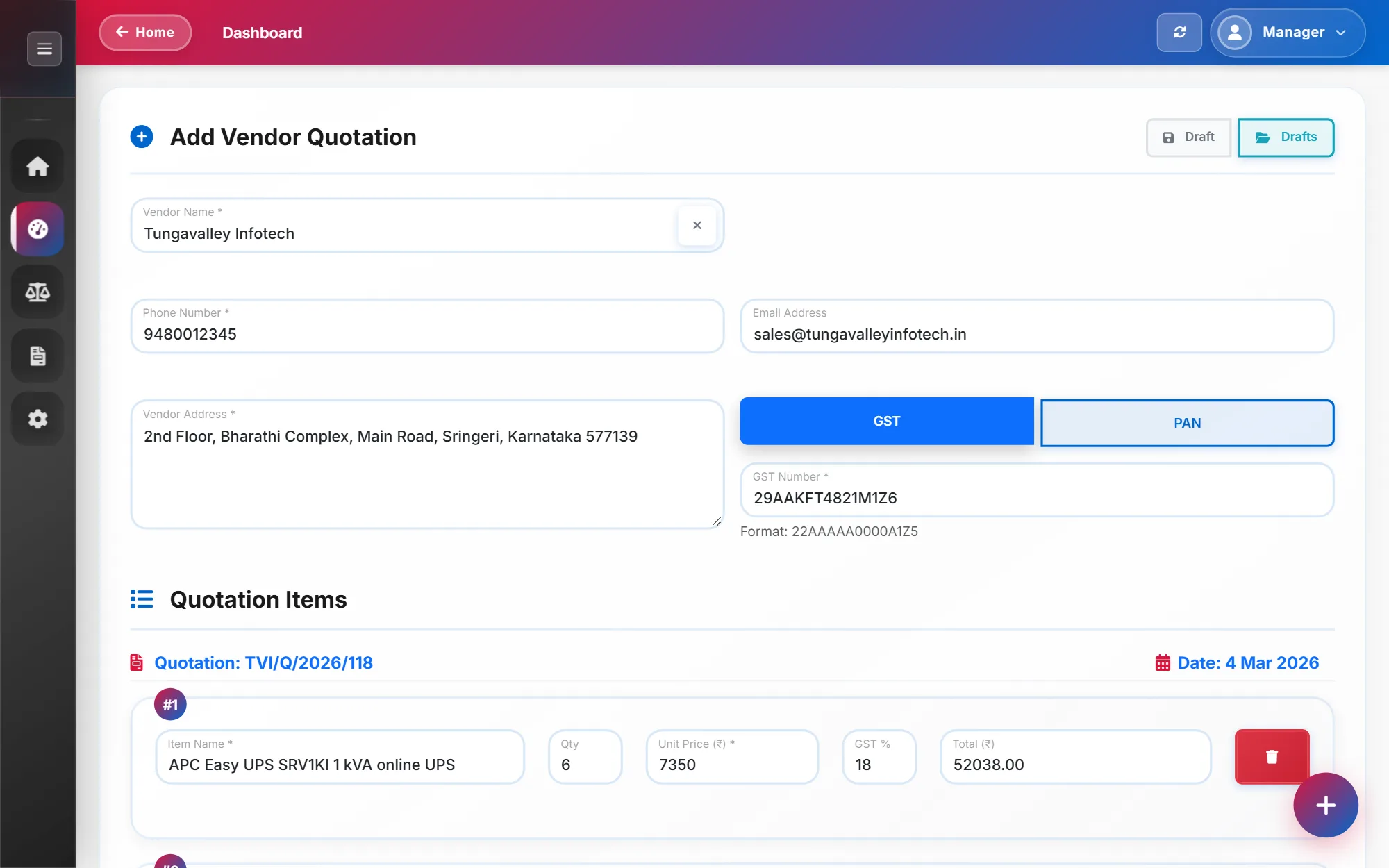
The slow part is retyping. Enter each quotation a single time, with its items, quantities, unit prices and GST. Everything after that should be calculated.
Compare by item, not only by total
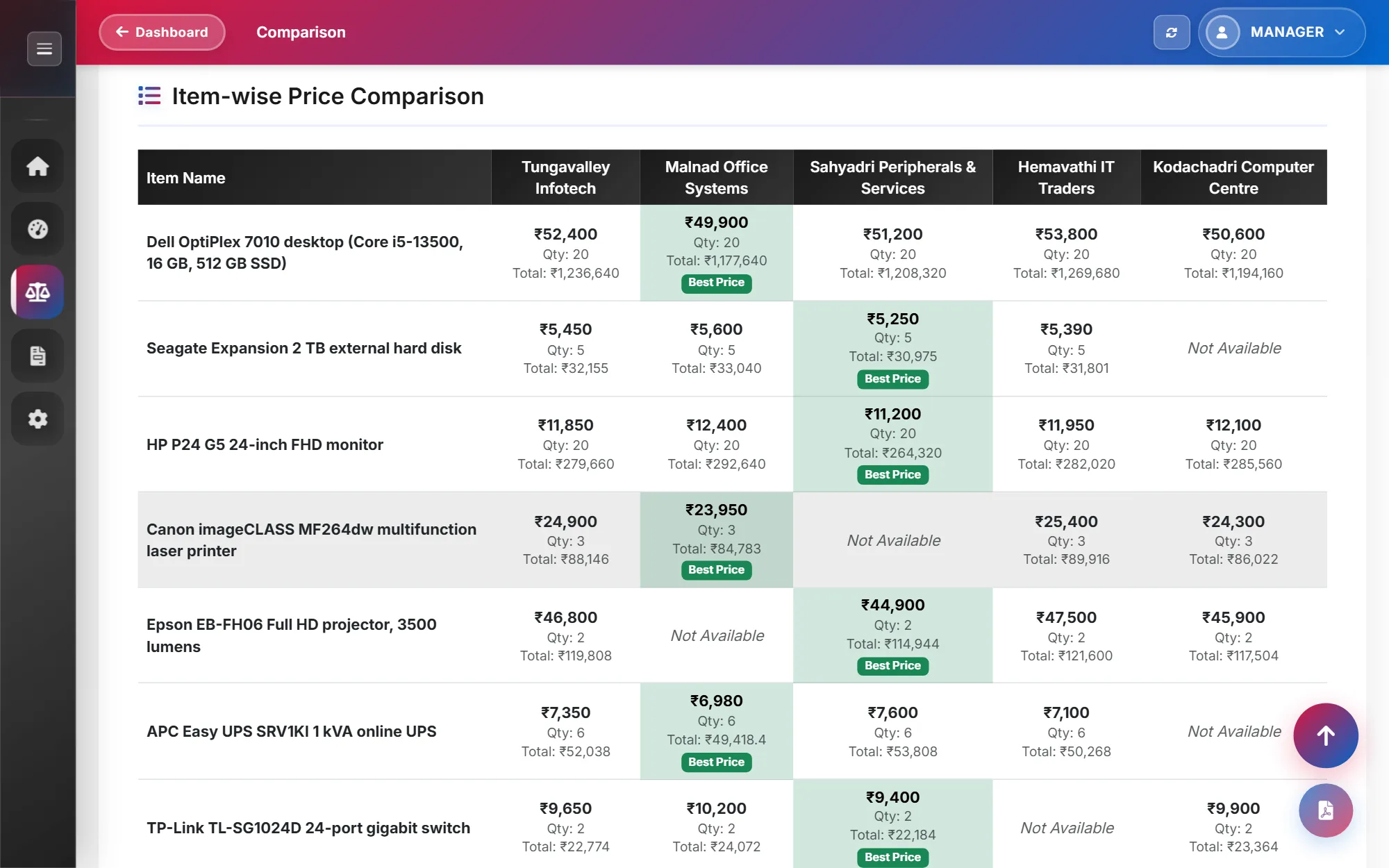
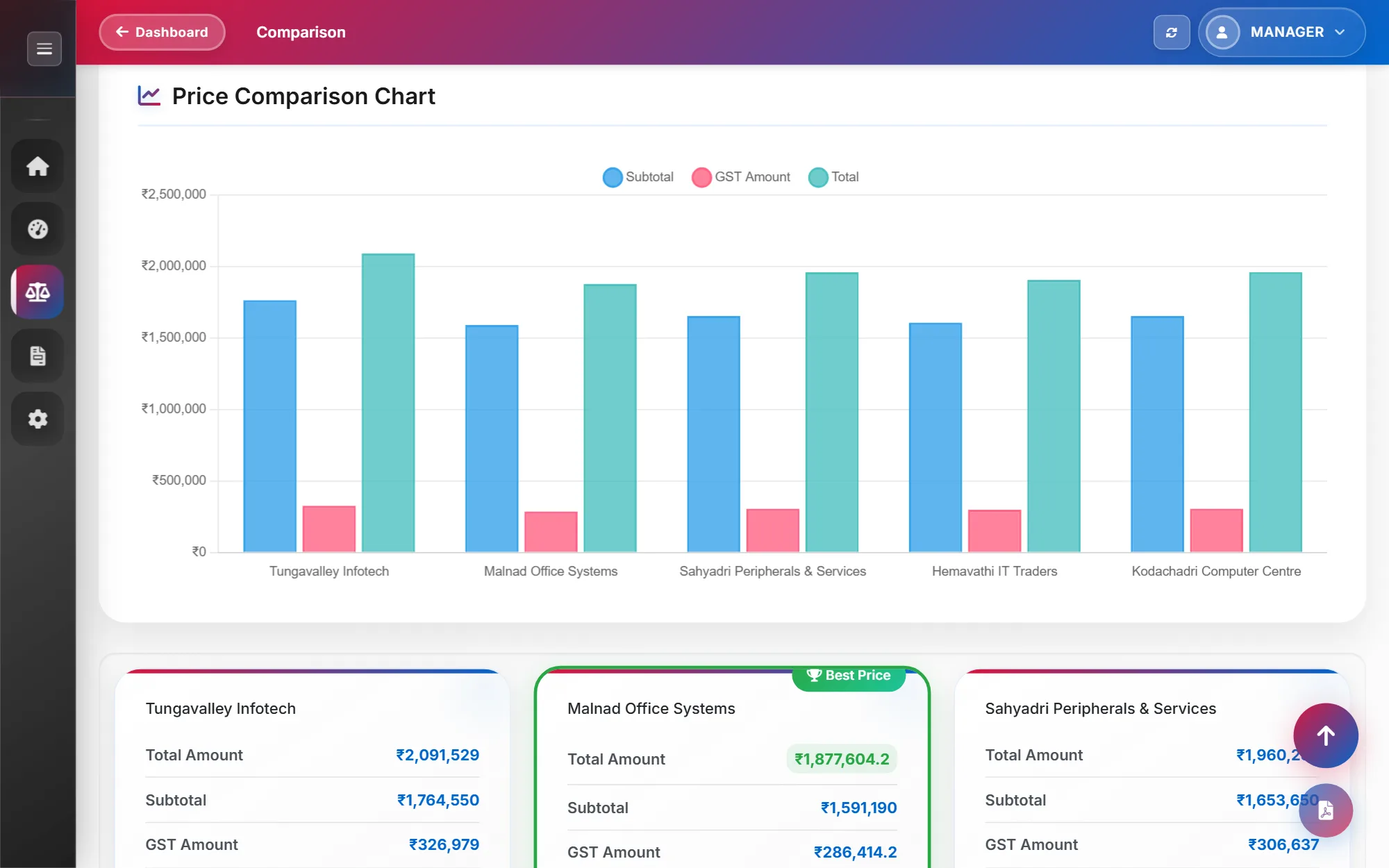
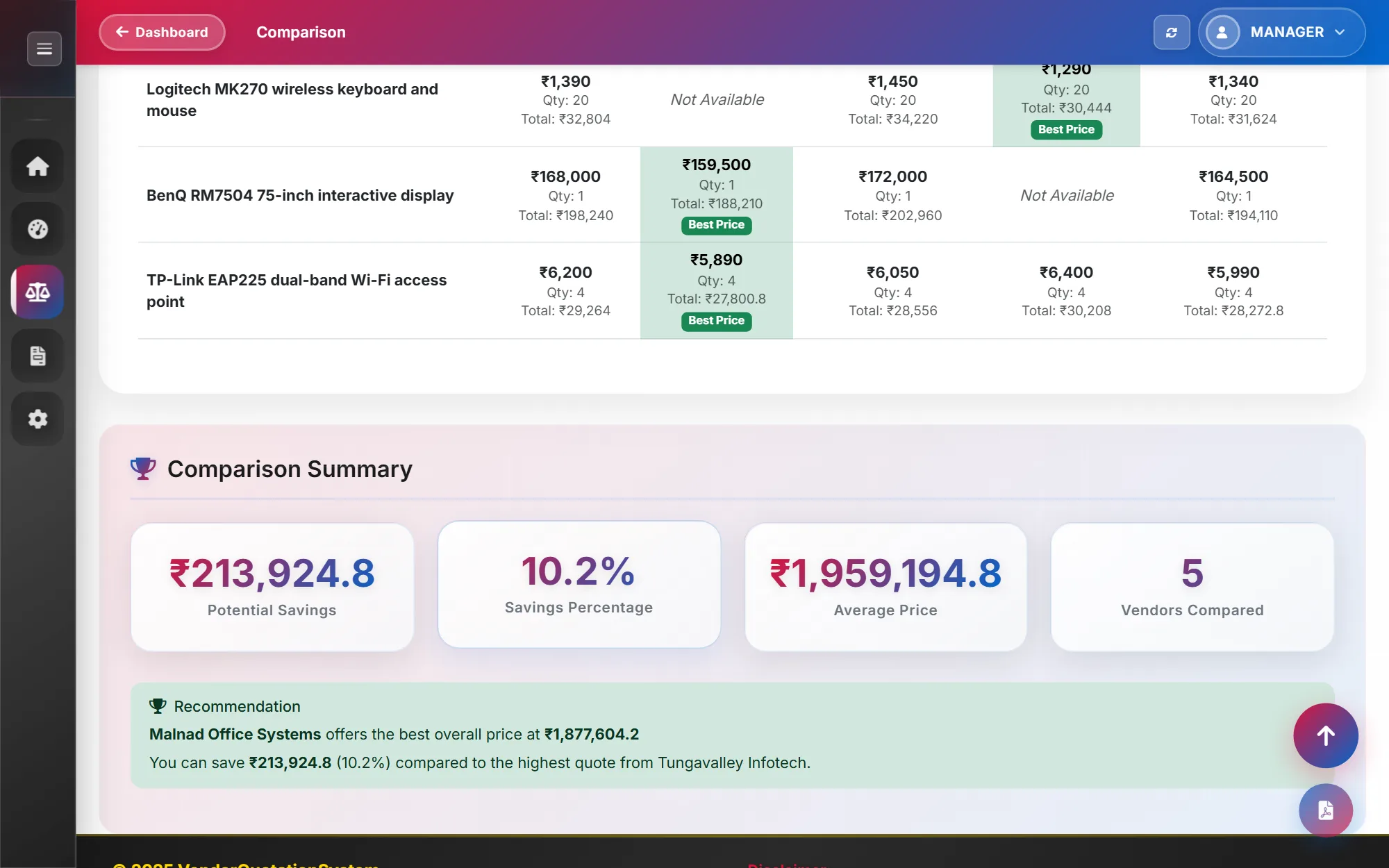
A vendor with the lowest total is not always cheapest for every item. Compare in a table with items down the side and vendors across the top, and highlight the cheapest quote for each item. Mark clearly where a vendor did not quote an item at all.
You can then see both the cheapest single vendor and the cheapest mix of vendors, and how much each option saves against the highest quote.
Treat GST and vendor identity carefully
- Show subtotal, GST and total separately, so tax does not hide a price difference.
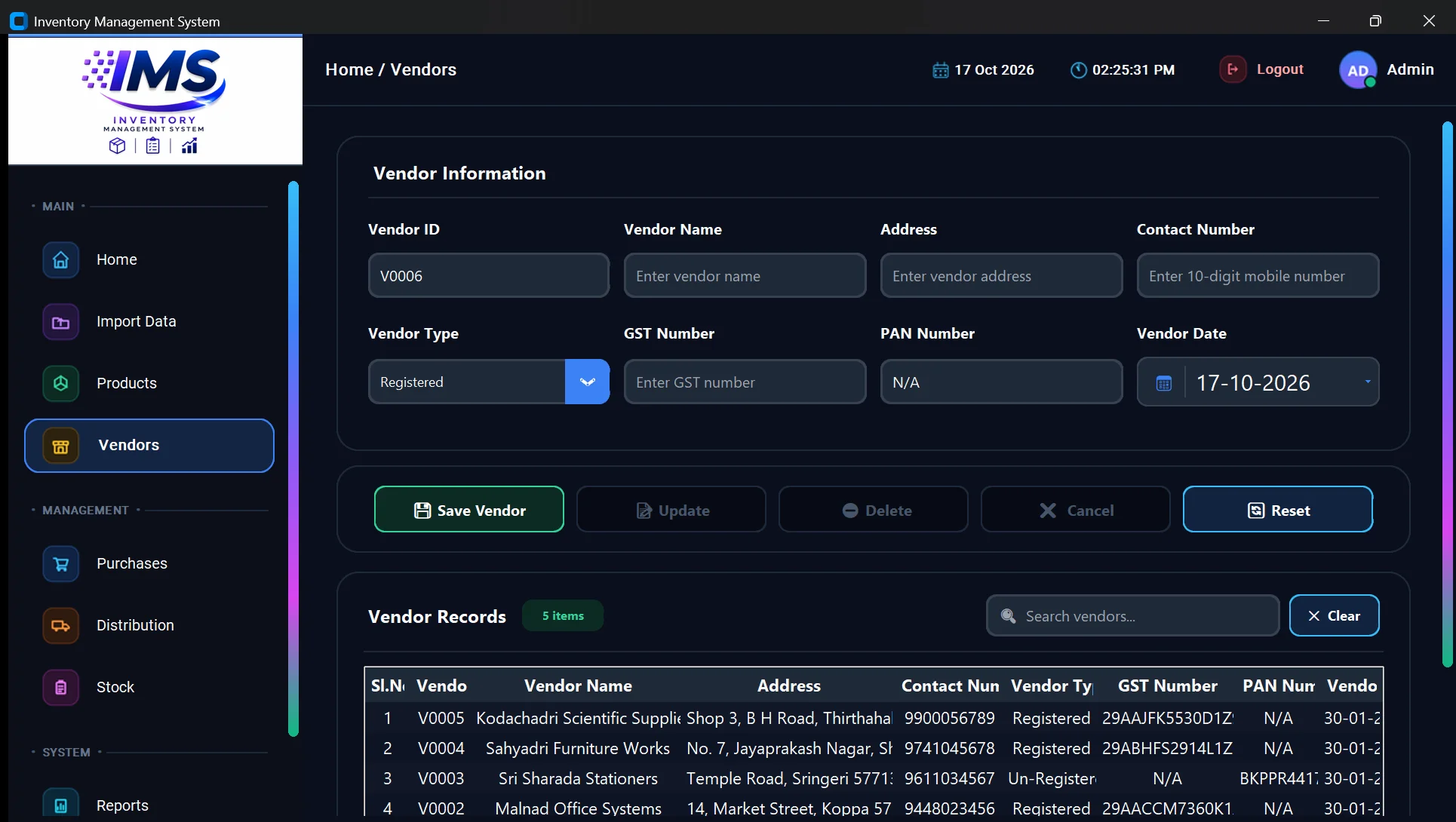
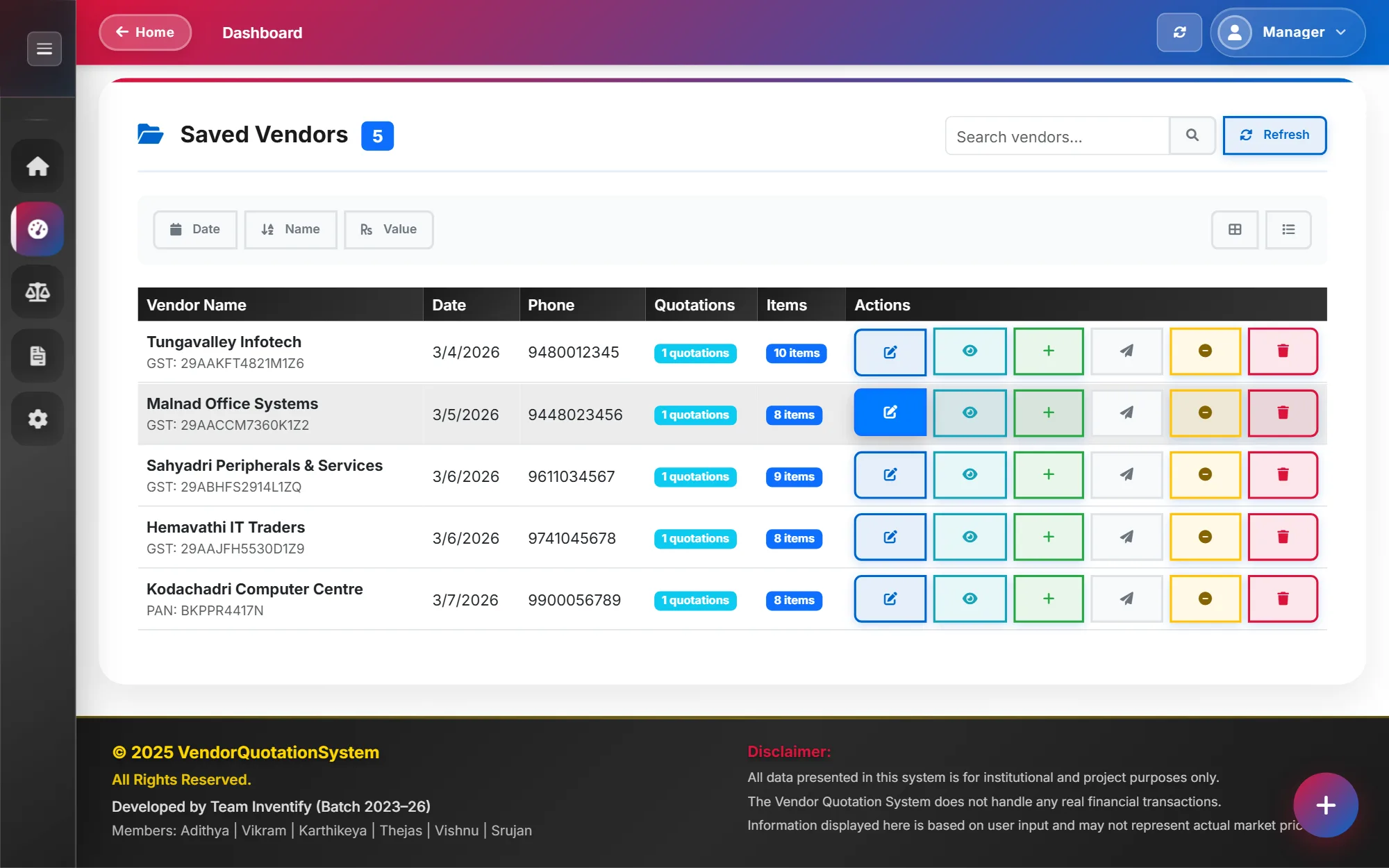
- Identify a vendor by GST number or, if unregistered, by PAN, and validate both formats.
- Keep each vendor's contact details with the quotation.
Generate the purchase order from the comparison
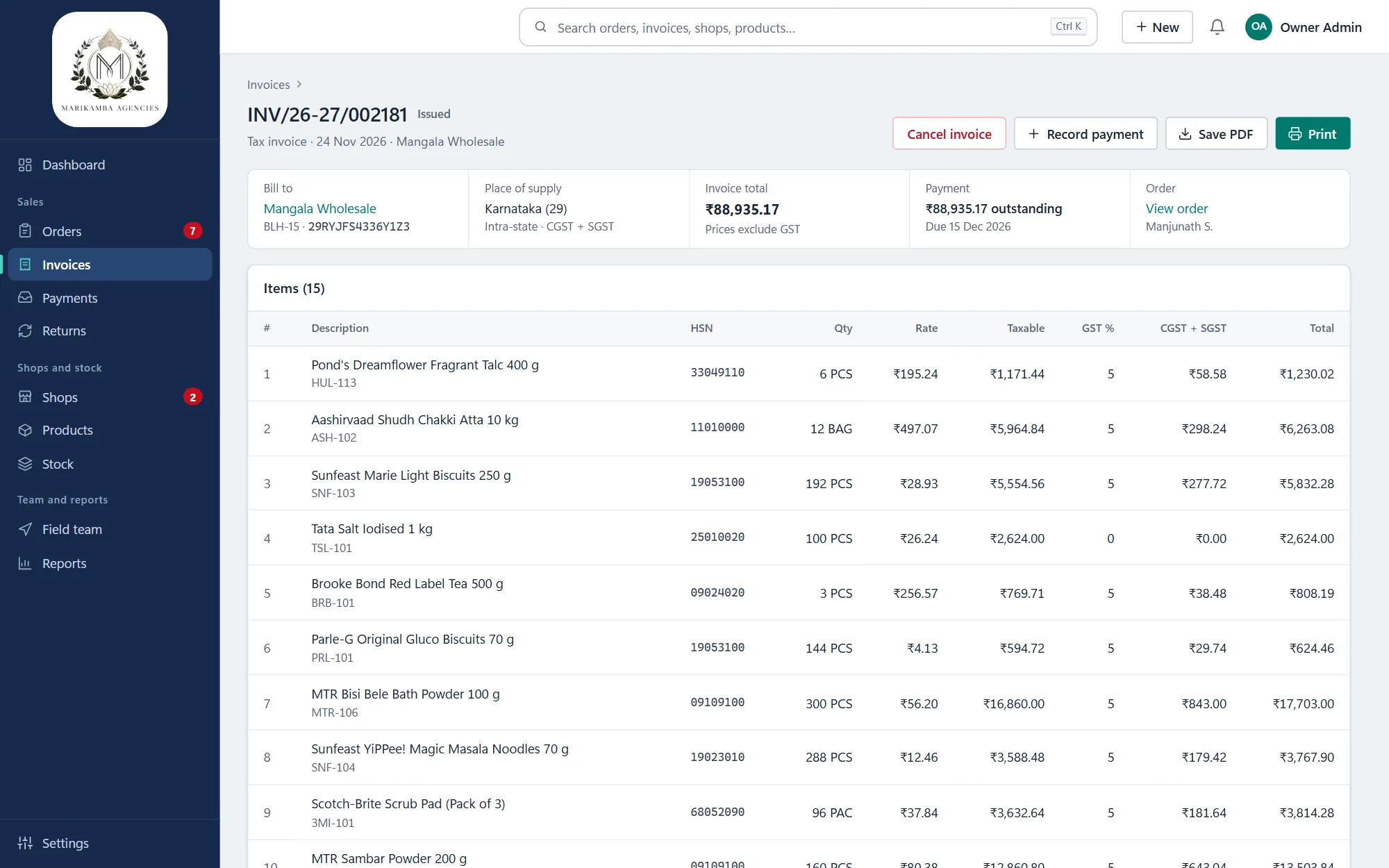
Once a vendor is chosen, the purchase order should come straight from that quotation: vendor and buyer details, PO number and date, the items with quantity, price and GST, the totals, and a line for the authorising signature. Printable and ready to sign.
Make mistakes recoverable
Deleting a vendor or quotation should move it to a recycle bin first, and the data should be backed up, so a slip does not cost you a week of entries.